

FAQ / Troubleshooting (from real customer cases)
Q1. The box has no CD. How do I install the simulator?
-
We provide a download link instead of a CD (more reliable and always up-to-date).
-
If your PC can’t scan a QR code, simply type the link into your browser and download.
Q2. The software opened in Chinese. How do I change to English?
-
Open the simulator.
-
Go to Settings / Language (齿轮图标 → 语言).
-
Select English and restart the program.


Q3. It says “USB controller not connected.” What should I do?
-
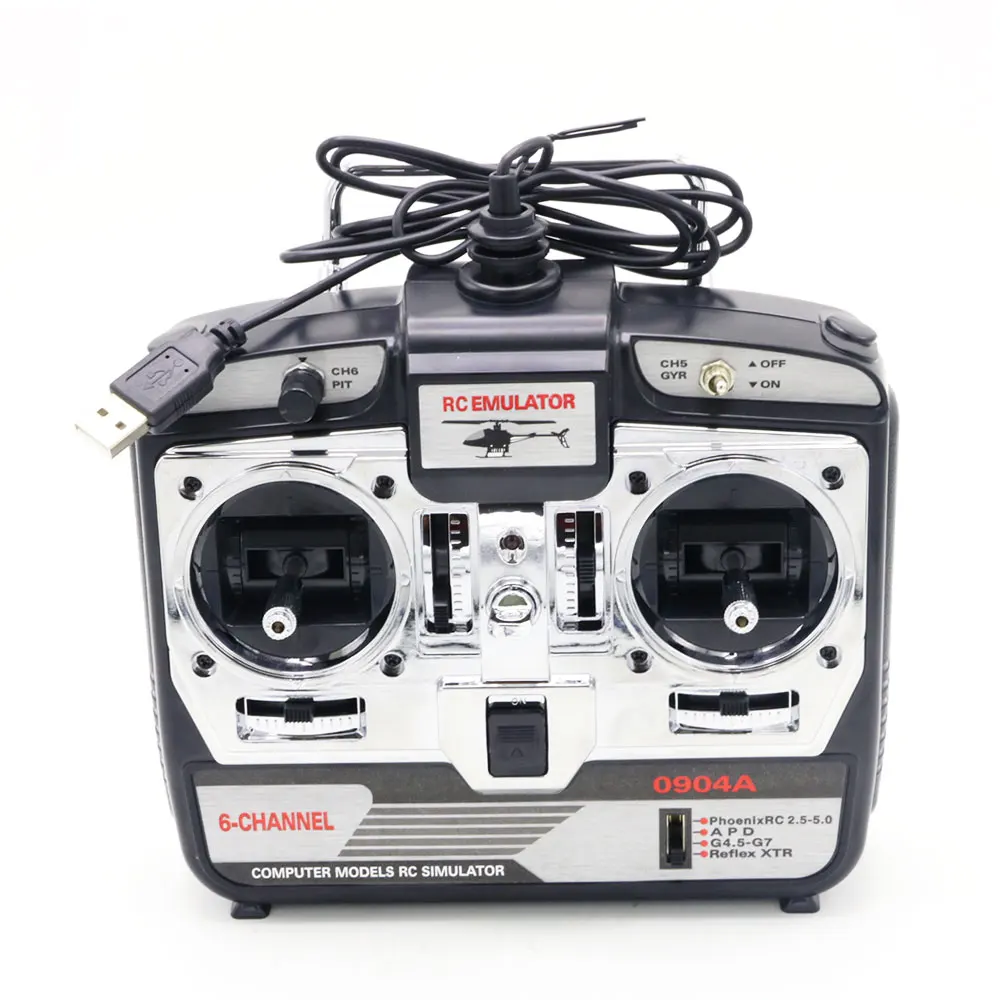
Unplug the USB adapter.
-
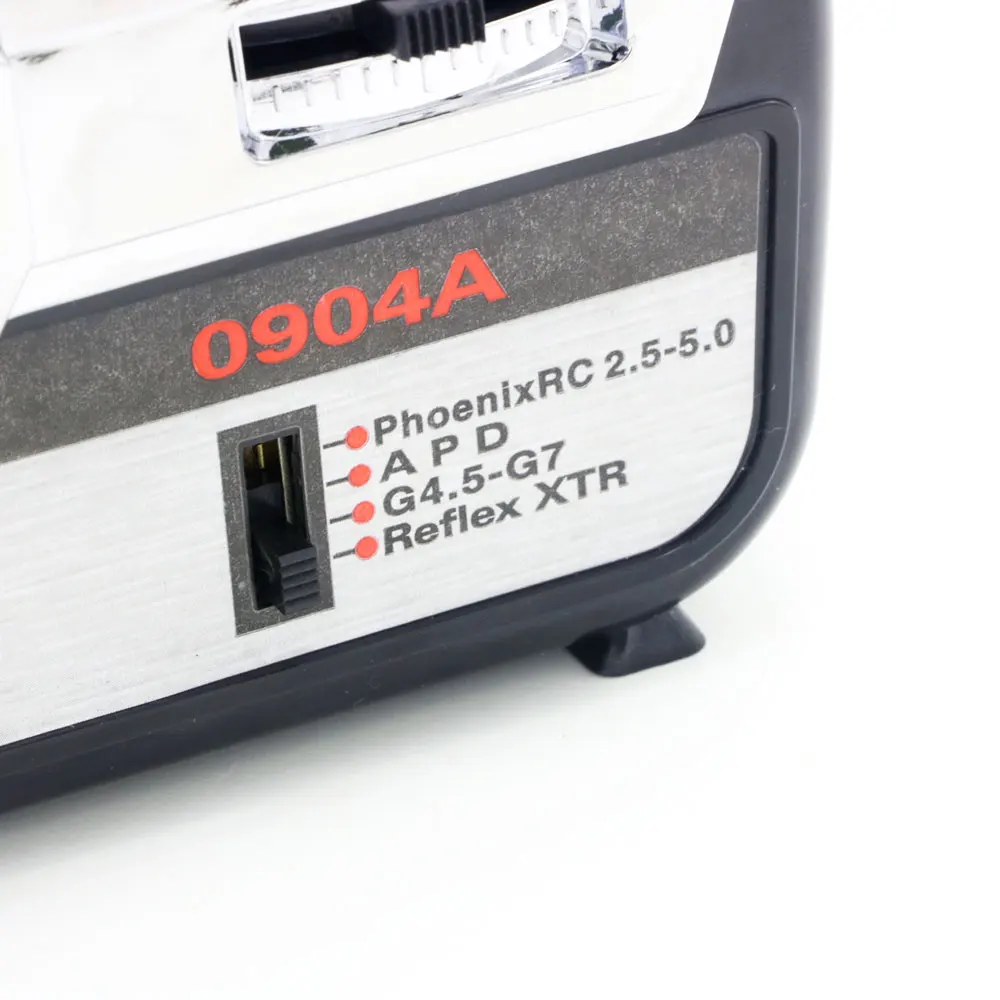
Set the mode switch on the adapter to “Phoenix RC.”
-
Plug USB back in, then launch the simulator and re-select the controller.
-
In Windows, open Control Panel → Set up USB Game Controllers and confirm the device appears and responds.
-
If needed, click Calibrate here, then restart the simulator.
Q4. Controller calibrated before, but now it won’t work.
-
Re-set the adapter to Phoenix RC, re-plug USB, and re-select the controller inside the simulator.
-
Try a different USB port (preferably on the PC, not a hub).
-
Close other joystick/game software that might “grab” the device.
Q5. I see “AI – Fred” on screen and can’t remove it.
-
That is the computer-controlled AI aircraft/pilot.
-
In the simulator menu, open Options/Settings → AI / Traffic / Assistant / Instructor and disable it.
-
If unsure, use Reset to Defaults for AI/Traffic and restart the program.
Q6. I get errors about missing components or the program won’t start.
-
Install/upgrade Microsoft DirectX Runtime (web installer).
-
After installing, restart the PC and launch the simulator again.
Q7. The download won’t start / security warning appears.
-
Temporarily allow the download if Windows SmartScreen or antivirus asks for permission.
-
Ensure you’re connected to the internet and that your company firewall isn’t blocking downloads.
Q8. The sticks move, but the model behaves strangely in the sim.
-
Open USB Game Controllers → Properties and verify each axis moves smoothly.
-
Click Calibrate, then in the simulator run Controller Setup / Mapping and check channel order (Throttle/Aileron/Elevator/Rudder).
-
Make sure Reverse/Invert is set correctly for each channel.
Q9. Which operating systems are supported?
-
Windows 10/11 are recommended.
-
Administrator rights may be required for first-time install and driver setup.
Still need help?
Email info@kidstoylover.com with:
-
A brief description of the issue
-
Your Windows version
-
A screenshot of USB Game Controllers and the simulator Controls/Settings page
We’ll get you flying ASAP.